

7 Strategies to Get Real Value from an AI Assistant for Small Business
AI at WorkNovember 17, 2026
Most small businesses that try an AI tool start the same way: open a chat window, type a request, get something generic, and drift back to the old process. The problem is rarely the model. It is scope, context, and supervision. A new hire with no brief, no access, and no manager would produce generic work too.
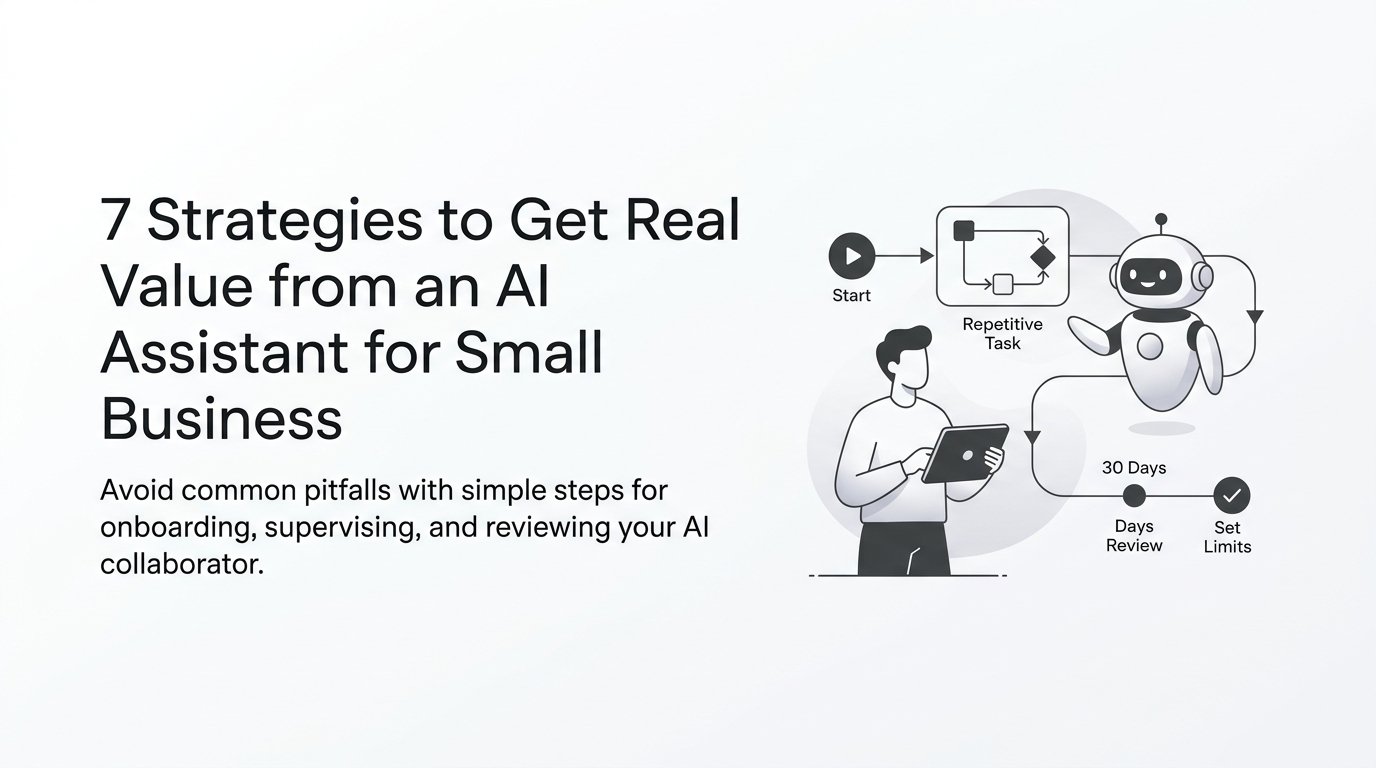
The seven strategies below treat an AI assistant for small business the way you would treat an employee you are onboarding: give it one job, the right background, a seat in your chat tools, access to your systems, clear limits, and a review at 30 days. The distinction matters. An AI assistant answers and drafts. An AI employee, like Henry, also acts on connected tools, with your approval. Everything here is aimed at getting to the second.
1. Start with one repetitive workflow
A first deployment succeeds when the task is frequent, rule-based, and low-risk. Frequency gives you many runs to learn from. Rules make the output checkable. Low risk means a bad draft costs a few minutes of editing, not a lost client.
For example, imagine a six-person agency that automates its weekly client status report. The assistant drafts each report from the project updates the team already posts, and the account lead reviews it before it goes out. The task happens every week, follows a consistent format, and has a human checkpoint built in.
To choose and launch your own:
- List every recurring task your team performs, however small.
- Score each one for frequency (how often) and risk (what happens if it is wrong).
- Pick the task with high frequency and low risk.
- Write a one-paragraph definition of "done": format, length, sources, and who reviews it.
- Run it for two weeks with human review on every output.
The common mistake is starting with something high-stakes or ambiguous, such as a pricing proposal or a sensitive client reply, then blaming the tool when the output is inconsistent. Ambiguous tasks produce inconsistent results from people too. Prove the pattern on something boring first.
Measure minutes per run before versus after, and the number of edits you make to each draft. If edits fall across the two weeks, your definition of done is working. If they stay flat, the brief needs tightening before you add anything else.
2. Set up the assistant by department
Generic context produces generic answers. Support, finance, sales, and operations each have their own vocabulary, rules, and standards for what a good output looks like. When each department gets its own setup, the assistant works from that department's reality instead of averaging across all of them.
Consider an illustration. The support setup holds your refund policy and tone guidelines, so a draft reply already sounds like your team and respects your limits. The finance setup holds your invoice formats and approval thresholds, so it knows what needs a sign-off. Same assistant, different briefs.
Henry is built for this: one AI employee that can be configured per department, so you do not manage a separate product for each team.
- Create one setup for each department that will use the assistant.
- Add five to ten reference documents: policies, templates, past examples of good work.
- Write a short style note covering tone, formatting, and words to avoid.
- Name an owner who is responsible for keeping it current.
- Test with five real requests from that department before rolling out.
The mistake to avoid is dumping every document into one shared context. Refund rules start leaking into sales conversations, and finance thresholds show up in support replies. Keep boundaries clean, and keep each document pack small enough that someone could actually review it.
Track first-draft acceptance rate per department: the share of outputs used with no or minimal edits. A department with a low rate usually has thin or conflicting reference material, which tells you exactly where to look.
3. Meet the team in Slack or Microsoft Teams
Adoption fails when using the tool means opening something new. If the assistant lives where conversations already happen, asking it for help costs one @mention. Henry answers in Slack and Microsoft Teams, so there is no new app for staff to learn.
Imagine a manager returning from a day of meetings to a 60-message thread. She asks the assistant in the channel to summarize it and create follow-up tasks. The summary lands where the team can see it, and the tasks are assigned without anyone retyping decisions into a tracker.
Rolling it out well takes a little structure:
- Install the assistant in your workspace.
- Choose two or three starter channels rather than everywhere at once.
- Publish a one-page norm on when to @mention in a channel versus when to DM.
- Demo it live in a team meeting using a real thread from that week.
The pitfall is letting sensitive requests happen in public channels. Questions about compensation, performance, or customer pricing exceptions belong in a DM or a restricted channel. Say so in the norm document, and name which channels are off-limits.
Measure weekly active users and requests per person. Active users shows reach; requests per person shows whether people found it useful enough to come back. A wide but shallow pattern means people tried it once and did not see the point, so revisit your demo.
4. Connect your tools so it can act
A drafted email that you copy into your CRM is still manual work. The real gain comes when the assistant updates the systems directly: CRM, helpdesk, accounting, calendar, and docs. That is the step from assistant to employee.
For example, imagine that after a sales call the assistant logs the notes to the CRM and drafts a follow-up email for the rep to approve. The rep reviews two things instead of doing three. Henry offers 3,200+ integrations (as of November 2026), so most small-business stacks are covered without custom work.
Stage the connections:
- Inventory your top five tools by how often your team touches them.
- Connect each with read access first, so the assistant can see before it can change anything.
- Enable one write action per app, such as "create a note" or "draft a ticket reply."
- Test on a sandbox account or low-risk records.
- Add further actions only after the first ones behave.
The classic error is connecting everything at once with broad permissions. When something goes wrong, you cannot tell which connection caused it, and the blast radius is large. Narrow, staged access makes problems small and traceable.
Measure the share of tasks completed without copy-paste, and the hours your team spends on manual data entry. Both should move together. If copy-paste persists, a write action is probably missing or a permission is too tight.
5. Gate risky actions with approval and scoped access
Autonomy is a dial, not a switch. The aim is to let the assistant move fast on safe work and stop for a human on anything that touches customers, money, or sensitive data. Henry works on this principle: nothing happens without your OK where it matters.
In practice, an illustration: outbound customer emails require one-click approval, while internal meeting summaries post automatically. The first has external consequences; the second does not.
Build three tiers
- Auto: low-risk, internal, reversible actions such as summaries and task creation.
- Approve: anything customer-facing, financial, or that changes important records.
- Blocked: actions the assistant should never take, such as deleting records or issuing refunds above a threshold.
Assign approvers and limit reach
Name an approver per department so requests do not queue in one person's inbox. Then scope access to the folders and channels each setup needs, nothing more. Review the action log monthly to see what was approved, rejected, or blocked.
The two failure modes are human. Approving by habit without reading defeats the gate, and removing gates after a few good weeks removes protection exactly when complacency sets in. Treat approval as a standing control, not a training wheel.
Track the approval rejection rate and incidents of incorrect outbound actions, with a target of zero incidents. A rejection rate near zero for months may mean people are rubber-stamping; a high one means the context needs work.
6. Build memory and reusable skills
Every time someone re-explains your deal stages or pricing rules, you pay a tax. Persistent memory removes it: durable business context stored once and used everywhere. Reusable skills and scheduled tasks then turn your best prompts into repeatable work.
For example, imagine a "Monday pipeline recap" task that runs weekly. It uses stored definitions of your deal stages and the team's report format, so the output arrives in the same shape every time without anyone writing a prompt.
- Write a one-page context document covering voice, pricing rules, and customer segments.
- Save your three most-used prompts as named skills.
- Schedule recurring tasks for work that happens on a calendar.
- Assign an owner to review and update the context each quarter.
Memory goes stale quietly. If pricing or policy changes and the context does not, the assistant will confidently produce outdated answers. Tie updates to the events that trigger them: a price change means a context edit the same day.
Measure repeat-explanation incidents, meaning how often someone had to restate something the assistant should know, and the number of skills used each week. Rising skill usage with falling repeat explanations is the signal you want.
7. Measure and expand on evidence
Bigger rollouts do not automatically produce bigger gains, and more automation is not always better. Without a baseline, you only have impressions, and impressions favor whatever was most recent or most dramatic. Evidence tells you where to extend and what to drop.
Suppose a team logs four hours a week on reporting before launch. After 30 days, they compare hours spent and how often drafts needed revision. The comparison is concrete, and it makes the next decision obvious.
- Record baselines before you start: time per task and current error or rework levels.
- Track three metrics in a shared sheet: hours saved per week, draft revision rate, and approval rejection rate.
- Hold a 30-day review with the department owner.
- Retire workflows that show weak results.
- Copy the winning setup to the next department.
You can run this pilot on a free-to-start plan (as of November 2026), which keeps the cost of a negative result near zero.
The common mistake is judging success by anecdote: one impressive output, or one frustrating one. Agree on the numbers before launch, and let them settle the debate. Model choice matters less than people expect; setup and context drive most of the difference, and with Henry you can switch models later while keeping memory.
Why Henry Is the AI Assistant for Small Business Teams
Every strategy above assumes one thing: an assistant that can take on a real job, not just answer questions. That is the gap Henry was built to close. It is one AI employee for every department, so a five-person team gets support, sales, finance, and operations help without buying and managing five separate tools.
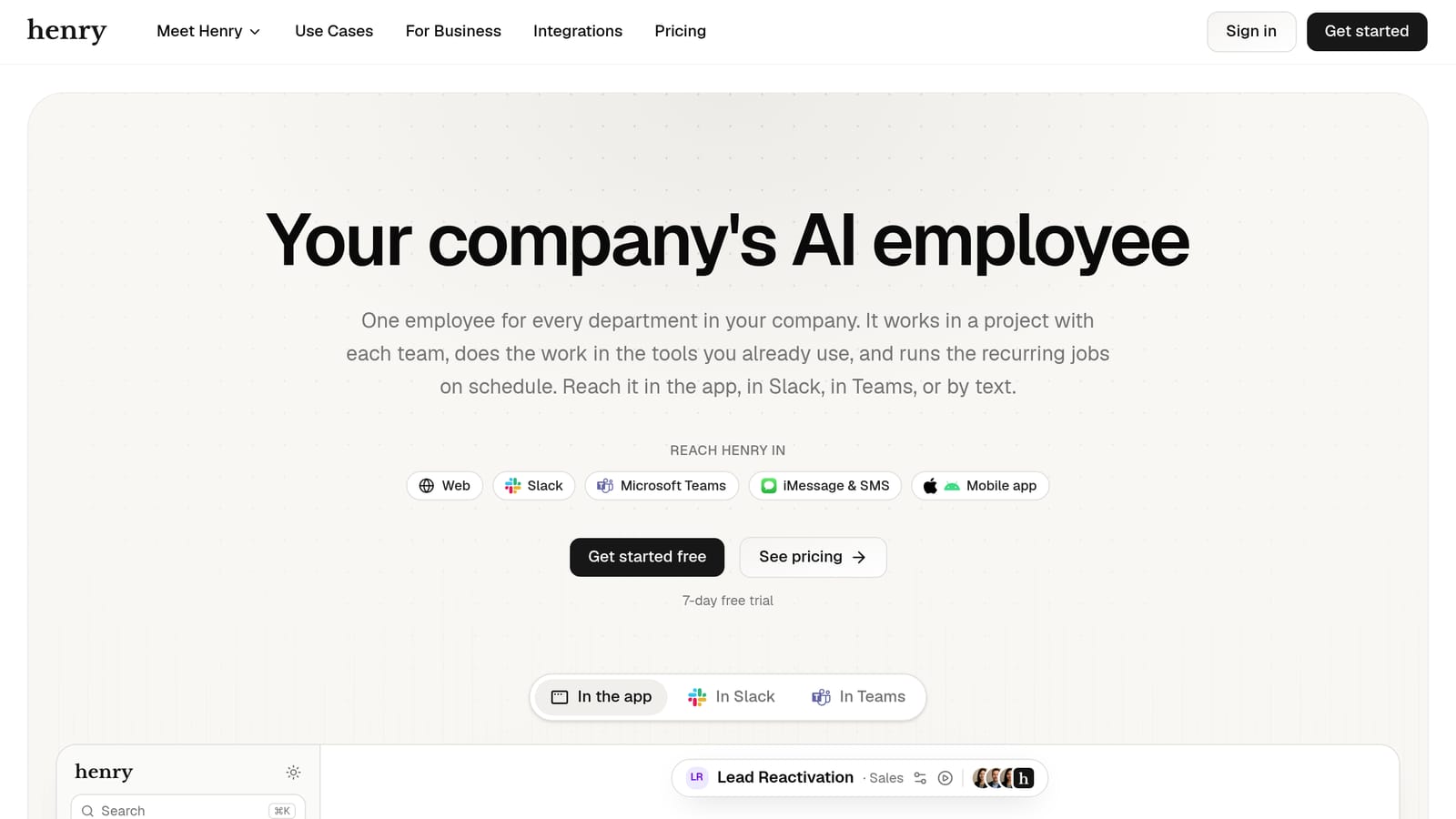
Here is how Henry maps to the playbook you just read:
- Set up by department: give each team its own brief, documents, and rules, all inside one AI employee.
- Works where your team already talks: Henry answers in Slack and Microsoft Teams, so there is no new app to learn and adoption starts with a single @mention.
- Acts, not just drafts: 3,200+ one-click integrations let Henry update your CRM, helpdesk, calendar, and docs directly.
- Nothing happens without your OK: approval-gated actions and scoped access keep customer-facing and financial work under human control.
- Never explain twice: persistent memory holds your pricing rules, deal stages, and voice, while Skills and Tasks turn your best prompts into repeatable, scheduled work.
- Projects for every team: each department runs its own shared projects, with Henry working inside them alongside your people (more on this below).
- Voice: talk to Henry when typing is not practical, such as between meetings or on the road.
- No model lock-in: switch AI models anytime and keep everything Henry has learned.
- Your data stays yours: access is scoped to exactly what each setup needs.
Projects Give Every Team Its Own Workspace
Most AI tools treat every request as a fresh chat. That works for a quick question, but it falls apart the moment real team work is involved. Who asked for what? Which client does this belong to? What did we decide last week? Henry answers this with Projects.
A project is a shared space where a team's ongoing work lives. Sales might run a project for pipeline management and another for a product launch. Support might have one for the help center and one for escalations. Finance might keep a project for month-end close. Each team owns its projects, and everyone on that team works in them together, with Henry as a member of the team rather than a separate chat window.
That structure is what makes automation reliable for small teams:
- Context stays with the work: files, decisions, and instructions live in the project, so Henry works from the right background every time without anyone re-explaining it.
- Teams stay separate: sales context does not bleed into support, and finance details stay inside finance projects, which also makes scoped access simpler.
- Everyone sees progress: because projects are shared, the whole team can see what Henry has done, what is waiting for approval, and what is next.
- Automation builds up over time: once a project's workflows are proven, they keep running for that team instead of living in one person's prompt history.
Tasks: Inside a Project or One-Off
Tasks are the units of work Henry actually carries out, and they come in two flavors.
Project tasks sit inside a project and inherit its context. For example, inside a sales team's pipeline project, Henry might run a weekly task to update deal stages in the CRM, another to draft follow-ups after calls, and a third to post a Monday recap to the team channel. Each task knows the project's rules, so the output is consistent and on-brand from the first run. Tasks can repeat on a schedule, which is how a project turns from a to-do list into a set of automated workflows.
One-off tasks are for everything that does not need a home. Ask Henry to summarize a long thread, pull a number from your accounting tool, or draft a quick reply, and it simply gets done without creating a project first. Many teams start here, then notice a one-off they keep repeating and move it into a project as a scheduled task.
The combination is what fits a small business: structured, automated work where it pays off, and fast one-off help everywhere else. Each team ends up with its own set of projects running its routine work in the background, while anyone can still grab Henry for a quick job in Slack or Microsoft Teams. And because approval gates apply to every task, automating more never means giving up control.
For small businesses, the cost of trying matters as much as the feature list. Henry is free to start for the whole team, so you can run the 30-day pilot from strategy 7 before spending anything. If the numbers do not move, you have lost nothing but a few hours of setup.
The result is simple: one employee, every department, and full control over what it does.
Where to begin: a first-week order that keeps risk low
In week one, do strategies 1, 2, and 5 together: a narrow workflow, department context, and approval rules. That combination gives you a task worth doing, a brief worth following, and limits worth trusting. Next, add Slack or Microsoft Teams and your connected tools, one app and one write action at a time. Once the assistant is part of daily work, use memory, skills, and your 30-day numbers to decide where to expand and what to retire.
Henry is one AI employee for every department, free to start for the whole team, with nothing happening without your OK. Pick one repetitive workflow and try it this week. Sign Up For Free