

How to Use ChatGPT Dots: A Step-by-Step Setup and First-Workflow Guide
GuidesNovember 17, 2026
This guide shows how to use ChatGPT Dots in a staged, low-risk way. By the end you will have it set up, connected to one or two tools, and running a real task with a review step before anything leaves your hands. You need an OpenAI account and access to Dots. If you plan to connect work apps, you also need your admin's permission.
One note on method: Dots is a new product and its interface, plans, and integrations may change. This guide does not rely on specific menu names. It tells you what to look for and what to decide at each point, so it still applies if the screens differ from what you see.
Step 1: Confirm you have access to ChatGPT Dots
Start with OpenAI's Dots announcement page and the linked help documentation. Note which plans, regions, and platforms (web, desktop, mobile) are supported. Availability and rollout details change, so treat anything you read as accurate as of November 2026 and recheck it before you plan a team rollout.
Then decide whether this is personal or work use, before you sign in. A work or workspace account may need an admin to switch the feature on, and signing in with the wrong account is one of the most common causes of failed connections later. Ask your admin now if you are unsure, and say which apps you expect to connect.
The most common mistake is assuming Dots is the standard ChatGPT chat window under a new name. Do not rely on a guess or a third-party summary. Read OpenAI's own description of what Dots is and what it is for, then write one sentence in your own words, for example: "Dots is for X, and it differs from regular chat in Y." If you cannot fill in Y from OpenAI's documentation, keep reading until you can. That sentence decides which tasks you give it.
You are done with this step when you can answer three questions: is your plan supported, are you using the right account, and does your admin allow it?
Step 2: Set up your account and basic preferences
Sign in with the account you settled on in Step 1 and go through first-time setup in the order the product presents it. Read each onboarding prompt rather than clicking through. These screens often include permission requests or defaults that are easier to decline now than to find later.
Check privacy and data settings
Before you enter anything sensitive, open the settings and find the data controls. Look for whether your conversations can be used to improve OpenAI's models, whether you can opt out, how memory or saved context works, and how to delete stored data. OpenAI's help documentation explains where these controls live for your plan, and the answers can differ between personal and workspace accounts. If you are on a work account, your organization's policy may override your personal choice, so ask what is allowed.
Write a standing instruction
Standing instructions are persistent preferences the assistant applies to every request, so you do not repeat context each time. If Dots offers a place for them (check the settings for custom instructions, memory, or similar), keep yours short and cover three things: your role, the tone you want, and the format you prefer. For example, imagine writing:
- I lead a five-person customer support team.
- Write in plain, direct language with no marketing phrasing.
- Default to short bullet points, and flag anything you are unsure about.
Avoid putting confidential details, customer names, or credentials in a standing instruction. It is applied everywhere, so anything in it travels with every request.
Step 3: Connect only the tools your first task needs
A connector (also called an integration) lets Dots read from or act in another app such as email, a calendar, or a docs workspace. It is tempting to connect everything at once. Resist that. Every connection widens what could go wrong and makes it harder to see which source produced a bad result. Pick the one or two tools your first task actually needs. A status update, for example, may need only a docs workspace or a message source.
Before you approve a connection, read the permission screen. Permission scope is the set of things the connection is allowed to do, and it usually falls into a few levels:
- Read-only: can view content but not change it.
- Write or send: can draft, send, or post on your behalf.
- Edit or delete: can modify or remove existing items.
Grant the narrowest scope that makes the task work. If the first task is summarizing, read-only is enough. You can widen access later, once you trust the results.
If a connection fails
Work through these in order:
- Admin approval: many workspaces require an admin to approve third-party apps or new connectors.
- Account mismatch: confirm the account you signed in to Dots with matches the one you are authorizing in the other app. Browsers often hold several logins.
- Plan support: check the documentation to see whether that integration is available on your plan and region.
- Stale authorization: disconnect, sign out of both apps, and reconnect.
If none of that works, the integration may simply not be supported yet. Choose a different first task rather than forcing it.
Step 4: Run your first task with a specific prompt
Choose a task that is low-risk and repeatable: summarizing a week of messages, drafting a status update, or pulling action items from meeting notes. Good first tasks produce a draft you review, not an action that is hard to undo.
A strong prompt has four parts:
- Goal: what you want produced.
- Source material: where the information should come from.
- Output format: structure, such as bullets or a short email.
- Constraint: length, audience, or what to exclude.
Here is an illustration of the difference. A vague version:
Help me with my status update.
A specific version:
Draft my weekly status update for my manager. Use only the messages and notes from the past seven days in the connected workspace. Format it as three sections: completed, in progress, blocked. Keep it under 200 words, and list any item you could not verify at the end.
The second prompt states what done looks like. The same applies to requests like "help with my inbox," which gives Dots no finish line. Say what you want: "list the five emails from this week that need a reply from me, with a one-line reason for each." If the result misses the mark, fix the prompt first. The cause is usually a missing source or an unstated constraint, not a limit of the tool.
Step 5: Review outputs and actions before anything is sent
Treat the first output as a draft. Check names, dates, figures, and any claim attributed to a person or document against the original source. AI-generated summaries can read smoothly while getting a detail wrong, and smooth writing makes errors easier to miss.
Next, find out how Dots handles actions. An approval step is a confirmation prompt that asks you to approve before something is sent, edited, or deleted in a connected tool. Test it with a harmless action, such as drafting a message to yourself. If Dots acts without asking, do one of two things: tighten the setting if one exists, or reduce the connection to read-only. Do not leave a send or edit permission active without a confirmation you control.
When the output needs changes, give feedback in plain language, as you would to a colleague:
- "Too long. Cut it to three bullets."
- "The second item is from last month. Use only this week."
- "Drop the introduction and lead with the blockers."
Once the result is right, save the prompt that produced it, along with any corrections you had to make. Those corrections usually belong in the prompt itself, so fold them in. That saved version is the basis for the next step.
Step 6: Make it repeatable and know when a team tool fits better
A prompt that worked once is only useful if you can run it again without rebuilding it. Store it somewhere you can find it: a saved template if Dots offers one, a recurring schedule if it supports that, or at minimum a shared document with the prompt, the sources it uses, and a short review checklist. The checklist might read: facts checked, names checked, no unexpected actions taken. Anyone on your team can then run the same routine and apply the same checks.
Before rolling it out beyond yourself, check what Dots supports for team use. Look for these in OpenAI's documentation:
- Whether context can be shared across a team, or stays personal.
- Whether you can set it up differently per department, such as support versus finance.
- Where answers appear, and whether that includes Slack or Microsoft Teams, where your team already works.
- How admins control access, permissions, and approvals.
If any of these fall short of what your team needs, that is useful to know early. It is much easier to pick the right tool before ten people have built habits around the wrong one. The next section looks at one alternative built specifically for teams.
Henry: A Team-First Alternative to ChatGPT Dots
Dots is a strong starting point for one person working through their own tasks. But what happens when support, sales, finance, and ops all want the same help, each with their own tools and rules? That is the gap Henry is built to fill: one AI employee for every department, working where your team already talks.
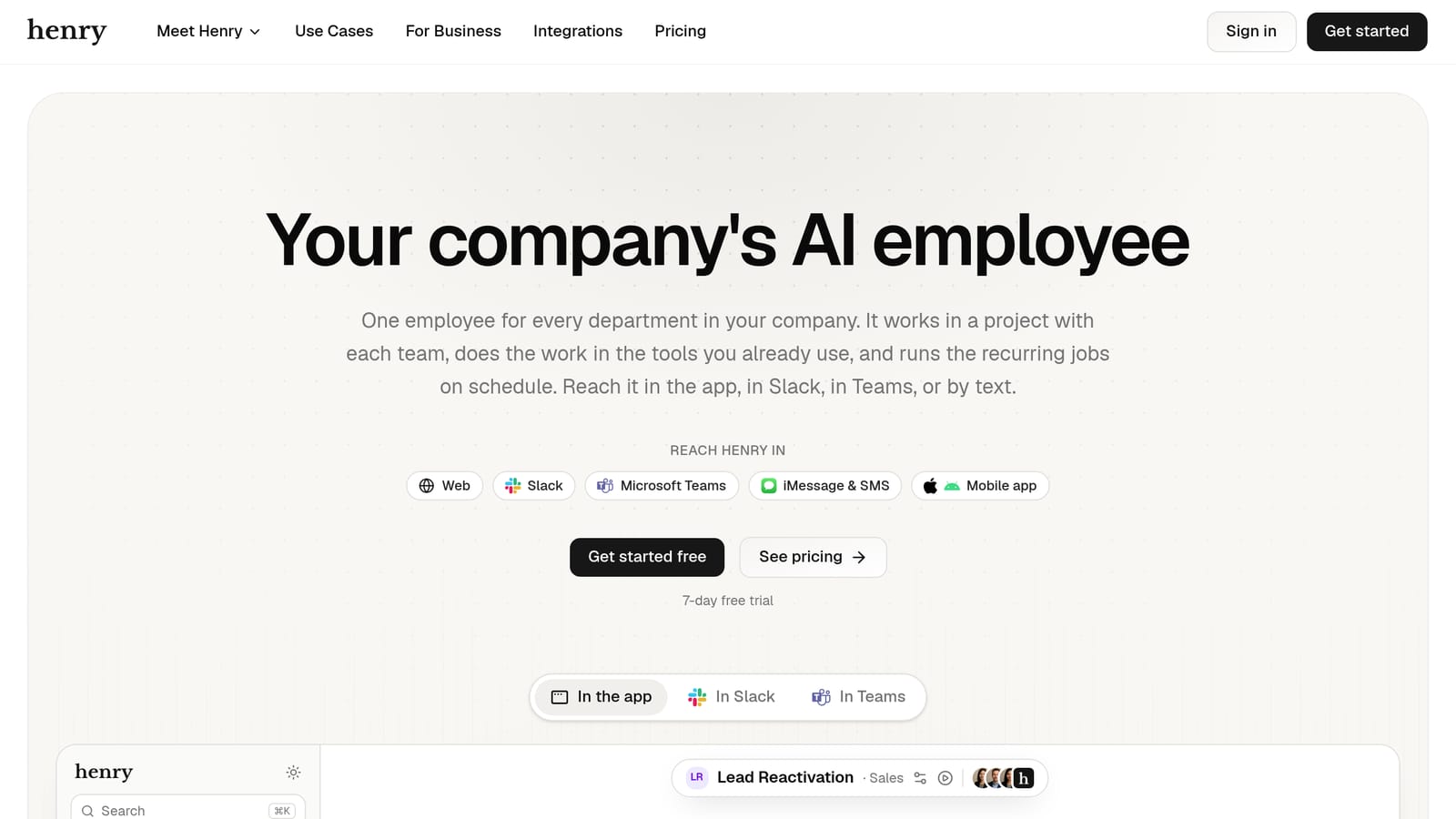
Here is how it maps to the checks from Step 6.
One AI Employee, Set Up by Department
Instead of every person writing their own standing instructions, Henry is set up per department. Support gets the context, tools, and tone support needs. Finance gets its own. Each team works with an assistant that already knows its job, and nobody has to rebuild the setup from scratch.
Recurring work fits in the same model. You can turn the routine you built in Step 5 into scheduled tasks, and package repeatable know-how as Skills, so the whole department runs it the same way.
Shared Projects and Memory That Persists
Personal context is fine for one person. Teams need context that is shared. With Henry Projects, teammates work with Henry in the same space, on the same files and history. Henry also has persistent memory, so you never explain the same background twice.
That memory stays even if you change the underlying AI model. You can switch models anytime without losing what Henry has learned about your team.
Nothing Happens Without Your OK
Step 5 told you to test whether actions need approval. In Henry, that is the default. Henry can act in your connected tools, such as sending, updating, or creating records, but actions are approval-gated, so nothing goes out until someone signs off.
Access is scoped, too. You decide what Henry can see and touch in each tool, and your data stays yours. For larger rollouts, the enterprise plan covers admin controls and security reviews.
Answers in Slack and Microsoft Teams
Adoption usually fails when people have to open yet another app. Henry answers inside Slack and other channels your team already uses, so asking for help is as easy as messaging a colleague.
The same goes for Microsoft shops. With Henry for Microsoft Teams, you mention Henry in a channel or DM and get the answer, or the approved action, right there.
3,200+ Integrations Without the Setup Fights
Step 3 warned about failed connections and admin approvals. Henry offers 3,200+ one-click integrations, covering the CRMs, helpdesks, docs, calendars, and finance tools departments rely on. The narrow-scope rule still applies: connect only what each department's first task needs.
ChatGPT Dots vs. Henry at a Glance
| What your team needs | ChatGPT Dots | Henry |
|---|---|---|
| Main focus | Check OpenAI's documentation for current scope | One AI employee for every department |
| Shared team context | Verify whether context is personal or shared | Shared Projects plus persistent memory |
| Per-department setup | Verify in the docs | Built in |
| Approval before actions | Test it yourself (Step 5) | Approval-gated by default |
| Slack and Microsoft Teams | Verify supported surfaces | Answers in both, plus more channels |
| Integrations | Depends on plan and region | 3,200+ one-click integrations |
| AI model choice | OpenAI models | Switch models anytime, memory kept |
| Cost to try | Depends on your ChatGPT plan | Free to start for the whole team |
The honest takeaway: if you are one person automating your own week, Dots may be all you need. If you are rolling AI out across departments and want shared context, approvals, and answers in Slack or Teams, Henry is worth a side-by-side test. Run the same first task from Step 4 in both and compare the results.
What to Do After Your First Week
After a week of use, go back to your connections and recheck the permissions you granted. Remove any scope the task did not turn out to need. Then look at your outputs: how often did the review step catch a mistake, and did any action happen that you did not approve? If the first task runs reliably, add a second task or one more connection, and repeat the same cycle of narrow access, specific prompt, and review.
If you find your team needs shared context and approvals across departments, Sign Up For Free.